Using Report Weather in the Instant Weather App
/The Report Weather feature in the Instant Weather app allows you to tell us what is actually happening in your area.
Your reports can be especially valuable during severe weather. Radar can show us what is happening within a storm, but it cannot always tell us exactly what is occurring at the ground. For example, radar may indicate rotation in a thunderstorm, but reports from people in the area can help confirm whether a tornado, damaging winds, hail, or other severe weather is actually occurring.
Reports of everyday weather are valuable too. If the current conditions shown in the app don't match what you're experiencing, submitting a report provides us with useful information that can help us improve the weather information we provide.
Report Weather isn't limited to current weather conditions. You can also report storm damage, power outages, flooding, road closures, and other weather-related hazards, as well as noteworthy conditions and events such as poor air quality, northern lights, and impressive sunrises or sunsets.
You can submit a quick report or include a photo or video captured directly through the app.
Report Weather is available with both the Original and Updated Weather Page styles. The appearance of the reporting screen may vary depending on the style and display settings you are using.
Opening Report Weather
How you open Report Weather depends on the Weather Page style you are using:
Updated Weather Page: Select Report from the navigation bar at the bottom of the app.
Original Weather Page: Select Report Weather from the bar that also contains Minutes, Hours, and the other weather options.
Once you open Report Weather, the reporting options are essentially the same with either Weather Page style.
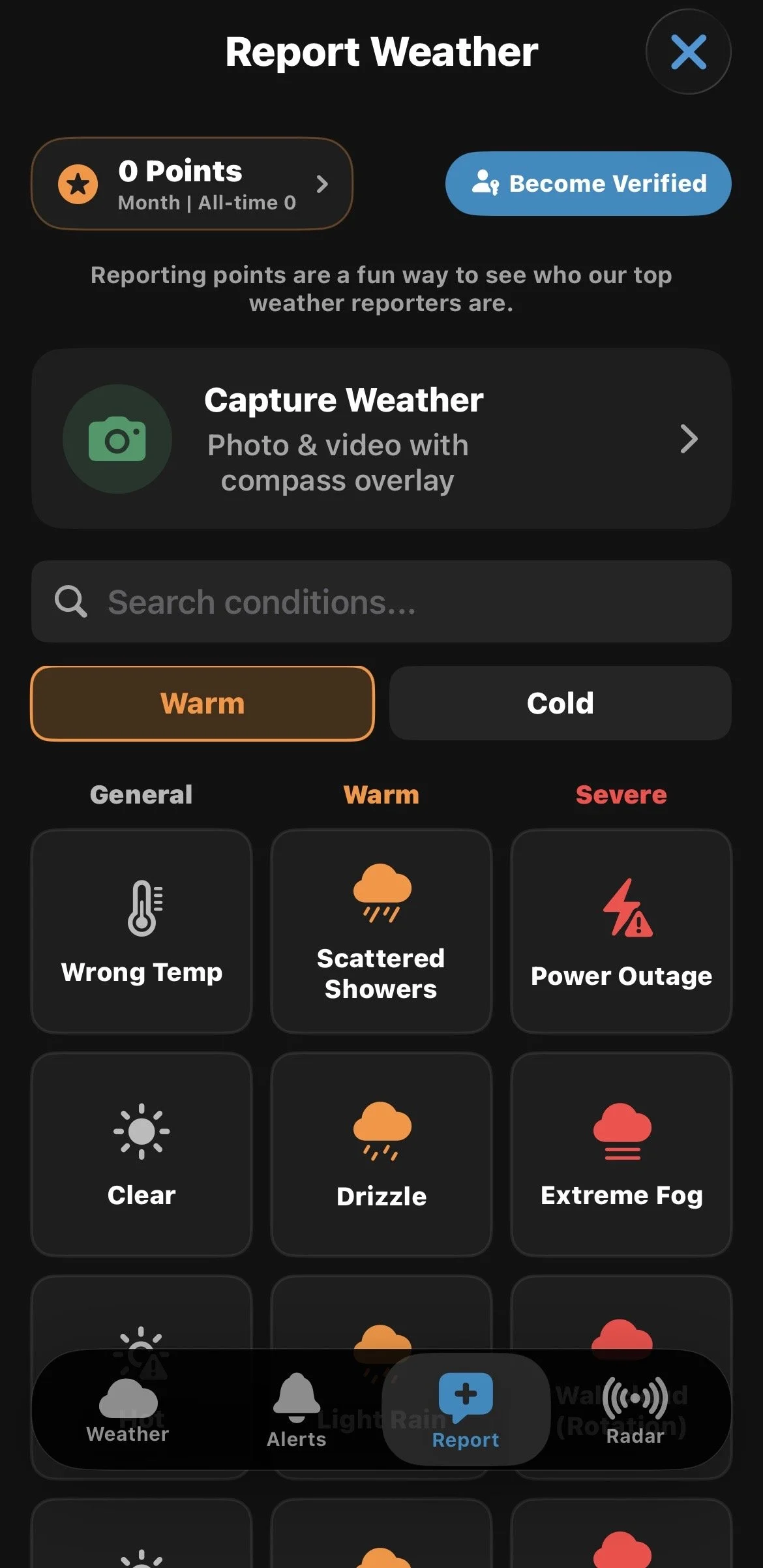
The Report Weather screen showing reporting options, Capture Weather, Search conditions, and reporting points.
Submitting a Report
Reports are organized into Warm Reports and Cold Reports, with conditions grouped into categories such as General, Warm or Cold, and Severe.
Choose the category that best matches the current conditions, then select what you would like to report. There are many report types available, ranging from everyday weather to severe weather, damage, hazards, and other noteworthy conditions.
Use Search conditions to quickly find a specific report type. This can be particularly helpful when reporting a specific hazard, impact, or event.
You don't need to include a photo or video to submit a report.
Please Make Your Reports Accurate
Please submit accurate reports. Reports help us understand what is actually happening in an area, so please report conditions, amounts, damage, and other information as accurately as possible. Inaccurate or intentionally false reports can make it more difficult for us to understand what is really happening.
For some significant report types, such as Tornado and Funnel Cloud, the app will ask how you learned about the event. Select the option that best describes the source of your report.
For example, you can indicate whether you witnessed it yourself, were told about it, saw a report, received an alert, or learned about it another way.
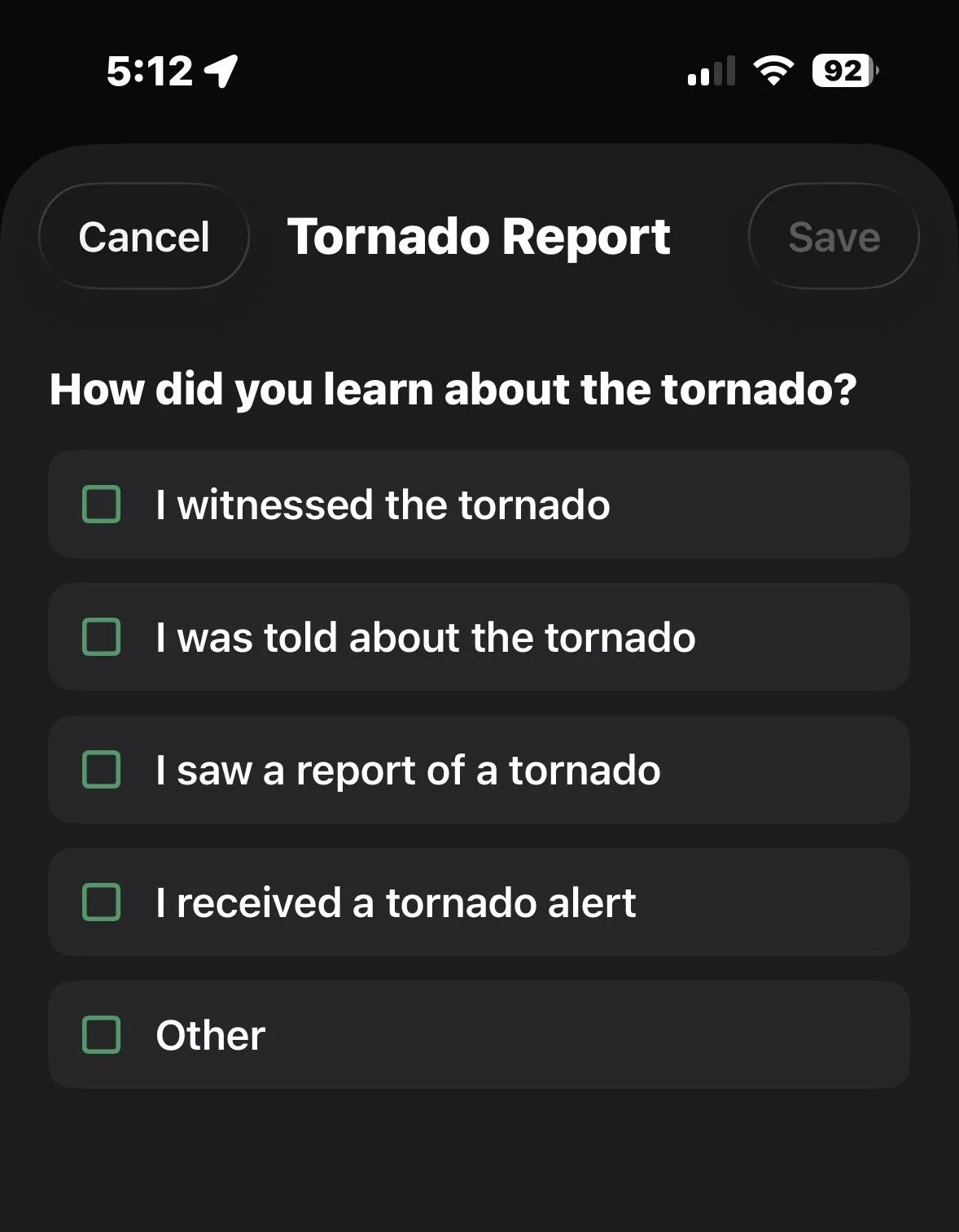
When reporting a tornado, the app asks how you learned about the event.
Adding a Photo or Video
To include a photo or video with your report, select Capture Weather.
Your device may ask you to allow Instant Weather to access your camera and microphone the first time you use this feature.
Choose Photo or Video, then capture what you are observing.
Photos and videos are captured directly through the app rather than selected from your photo library. This helps ensure that reports represent current conditions at the reported location.
Information is added to your photo or video, including the date and time, location, and direction the camera is facing.
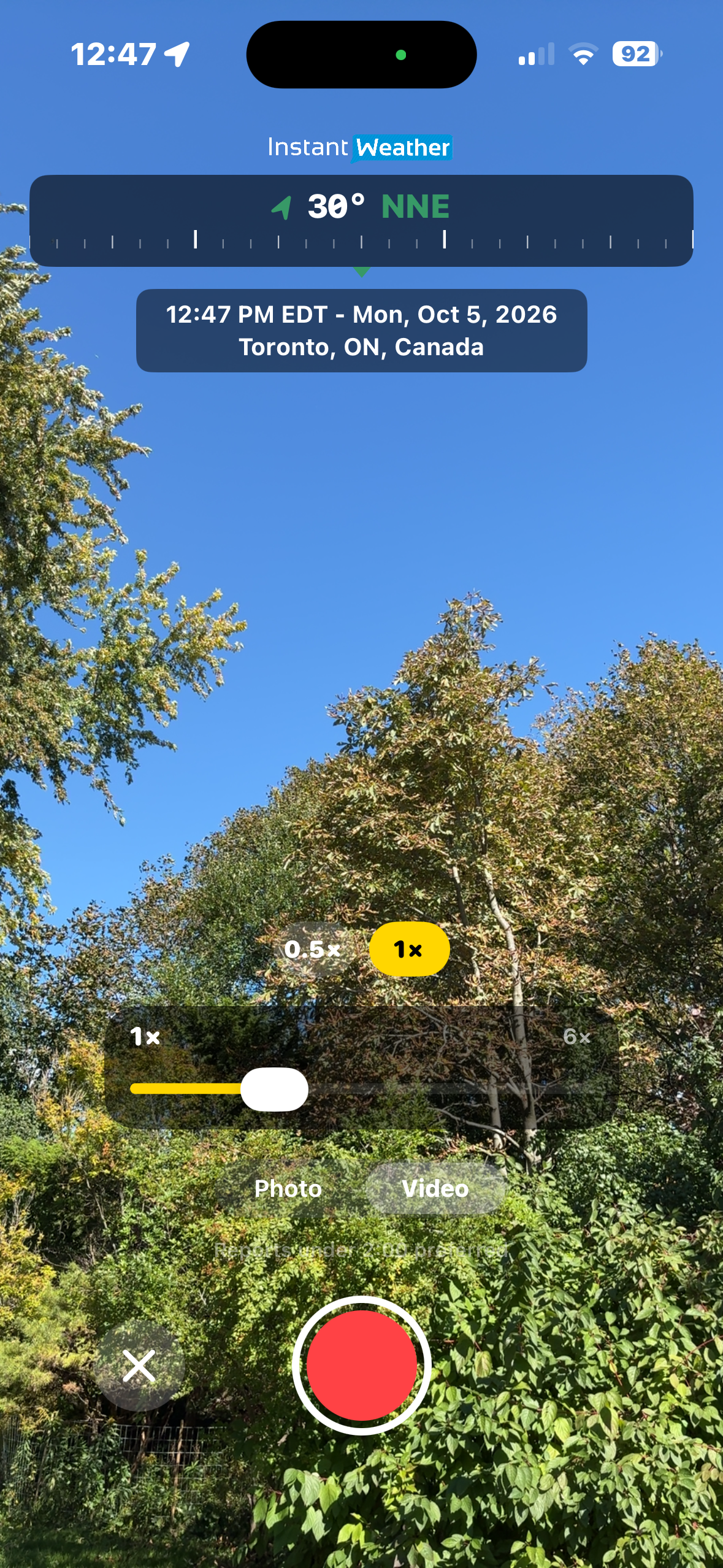
The Capture Weather camera includes a compass overlay, date, time, and location information.
Photos and Videos During Severe Weather
Photos and videos can provide valuable additional information, particularly during severe weather.
Damage photos can be especially useful in helping us understand what occurred. Relevant damage reports may also be shared with the Northern Tornadoes Project (NTP) for further investigation.
Photos can also help document flooding, landslides, and other impacts. Reports of power outages can provide additional information about a storm's impacts and potential severity.
Video can be especially helpful when movement is important. For example, a video may help us see rotation in a wall cloud, funnel cloud, or possible tornado.
For hail reports: If it is safe to do so, place a ruler or a common object such as a coin beside the hailstone when taking your photo. This provides a size reference and helps us determine how large the hail is.
Always put your safety first. Only take photos or videos when you can do so safely.
Adding Conditions and Details
After capturing your photo or video:
Select at least one condition that describes what you experienced. You can select more than one condition when appropriate.
Select Add further details if you would like to provide additional information about your report.
If you aren't happy with your photo or video, select Retake Photo or Record Again.
When you're ready, select Submit Report.
Providing additional details can be particularly helpful for severe weather, damage, or unusual events.
Tip: Keep videos relatively short and focused on what you are reporting. Shorter videos will generally upload more quickly and are easier to share.
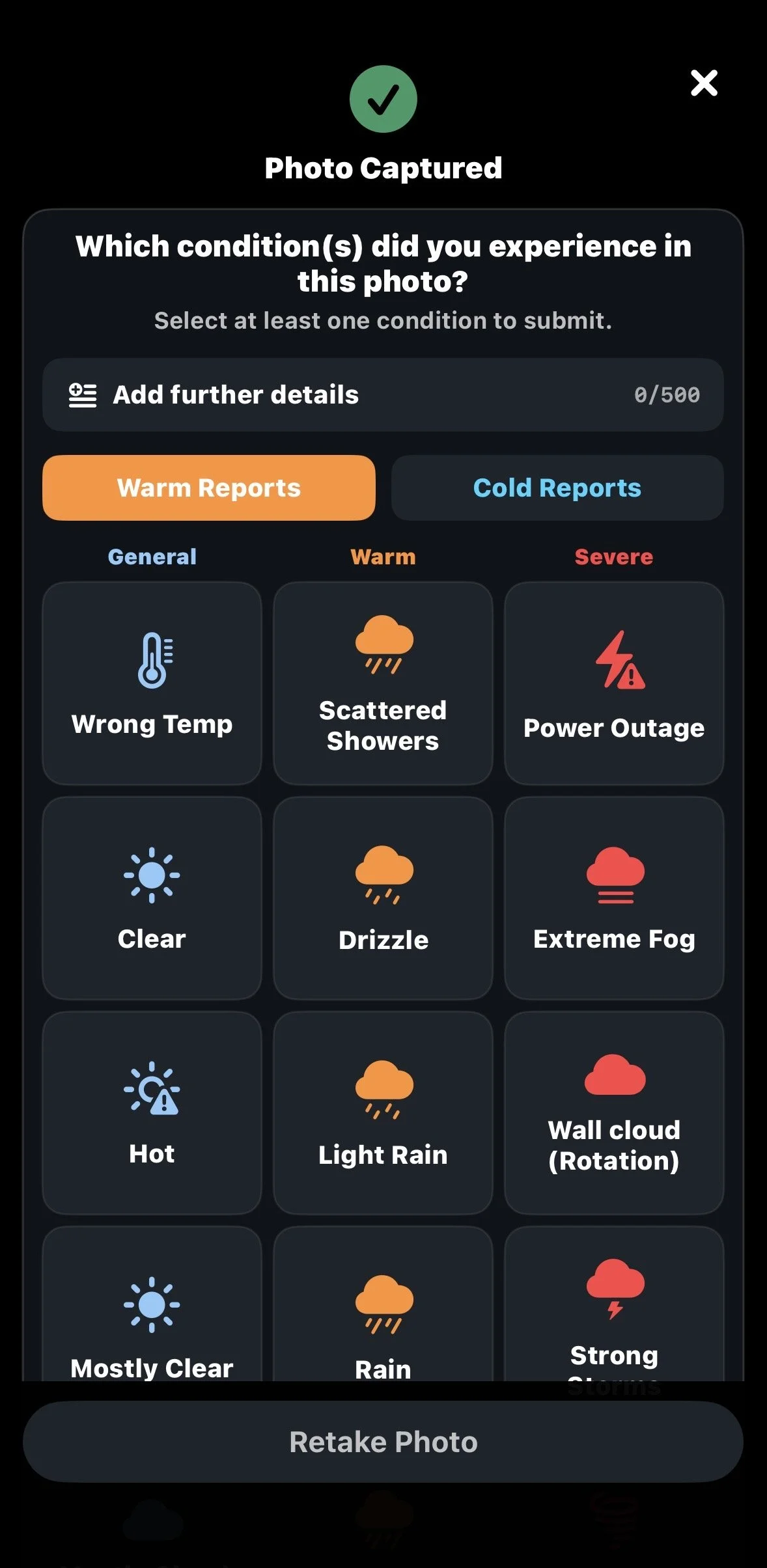
After capturing a photo or video, select the conditions you experienced and add further details if needed.
After You Submit a Photo or Video
Once your report has been successfully submitted, you'll have several options:
Download: Save the photo or video to your device.
Share: Share your report using your device's sharing options.
Record Another: Capture another report.
Done: Finish reporting and return to the app.
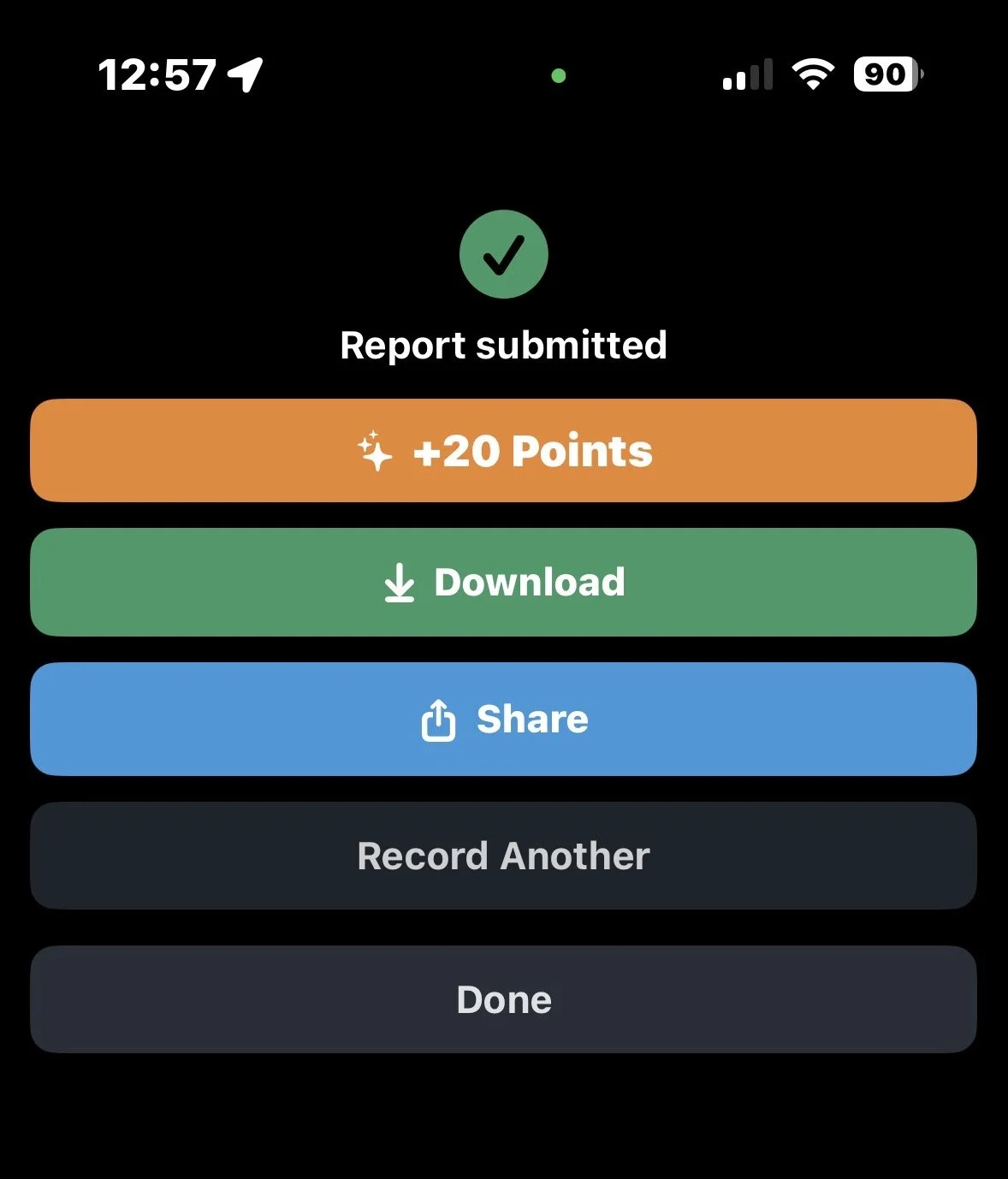
After submitting your report, you can download or share your photo or video.
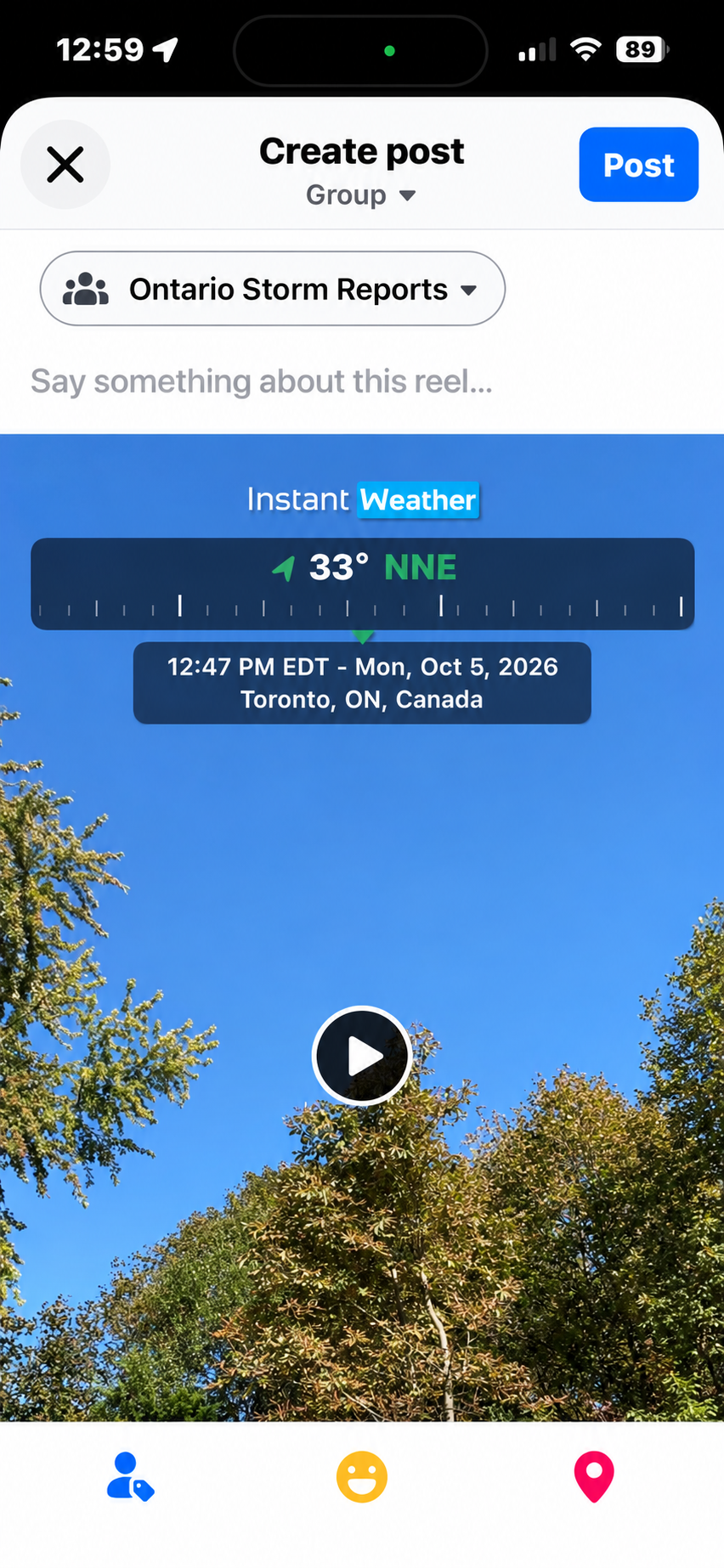
Example of sharing a report with an Instant Weather Storm Reports Facebook group.
Save a Copy of Your Photo or Video
If you would like to keep the photo or video you submitted, download it before leaving the submission screen.
Select Download after submitting your report to save a copy to your device. Your device may ask for permission to save the photo or video the first time you use this option.
We recommend downloading any photos or videos you would like to keep, as submitted media may not be available for you to retrieve later.
Share Your Report
We also encourage you to share significant weather reports with the appropriate Instant Weather Storm Reports Facebook group for your region.
Sharing your report allows other members of the community to see what you experienced. Reports posted to our Facebook groups may also be easier for the Instant Weather team to feature during live severe weather coverage, when viewer reports and photos may be displayed alongside the livestream.
To share your report with a Facebook group:
After submitting your report, select Share.
Choose Facebook from your device's available sharing options.
In Facebook, select Groups.
Choose the appropriate Instant Weather Storm Reports group for your region.
Add any additional information you would like to share, then post your report.
The available sharing options and steps may vary depending on your device and installed apps.
Reporting Points
Submitting reports earns reporting points. Reporting points are a fun way to keep track of your contributions and see how you compare with other weather reporters.
The Report Weather screen displays your points for the current month as well as your all-time total.
The number of points earned may vary depending on the type of report you submit.
Becoming a Verified Reporter
Becoming a Verified Reporter is optional.
Verification allows Instant Weather to save and combine your reporting points, even if you switch devices or reinstall the app.
It also allows the Instant Weather team to contact you by email if you submit a significant weather report and we would like to learn more about what you experienced.
To become a Verified Reporter:
Select Become Verified from the Report Weather screen.
Enter your name and email address.
Select Submit.
Once verified, the Report Weather screen will show Verified Reporter.
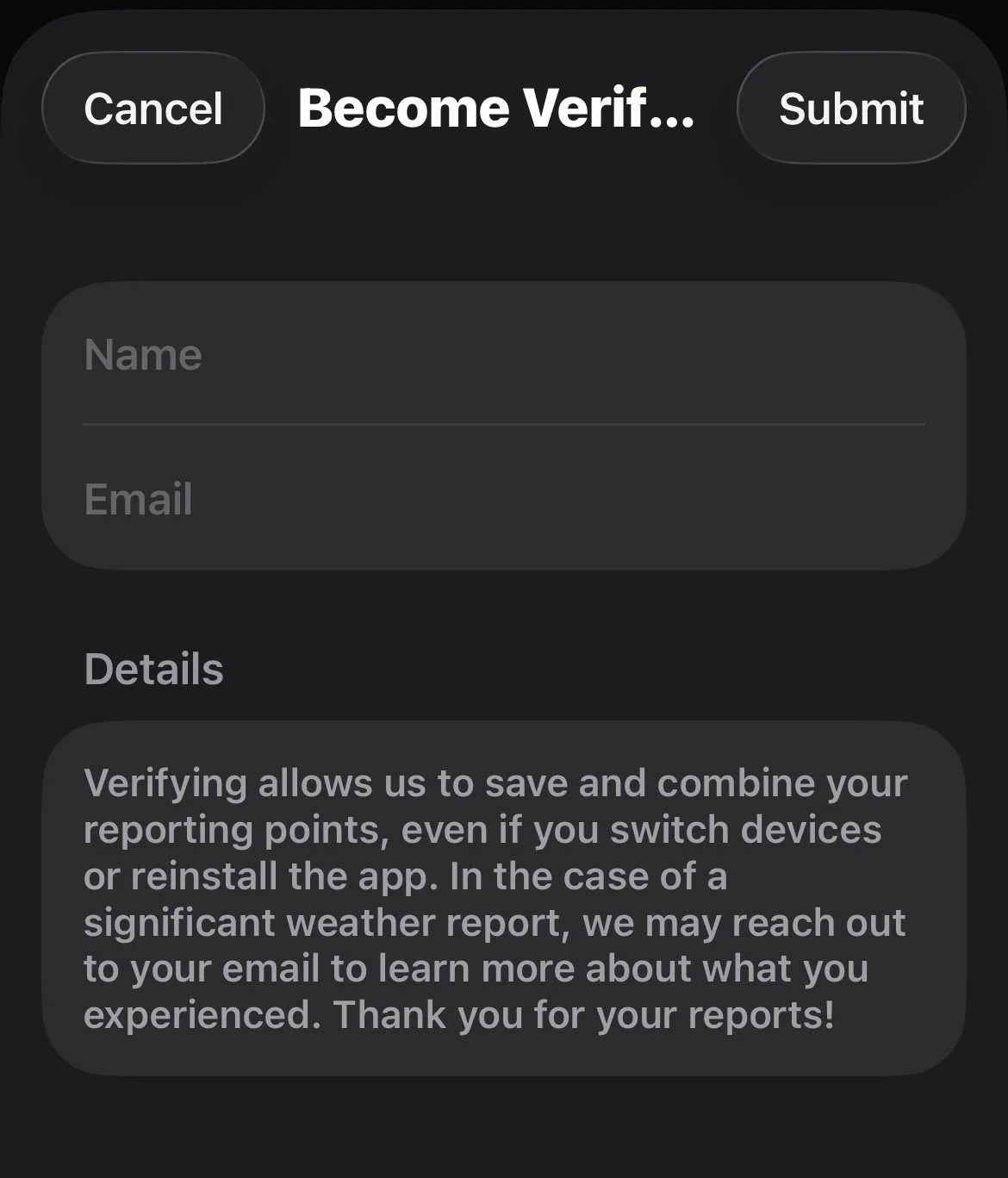
Becoming a Verified Reporter allows your reporting points to be saved and combined across devices.
Last updated: November 10, 2026