Understanding the Weather Pages
/The Instant Weather app includes two different Weather Page styles: Updated and Original.
Both styles use the same forecast information, but they organize and display it differently. The Updated style provides a more detailed and interactive view, while the Original style retains the familiar layout from the previous version of the Instant Weather app.
You can try both and choose whichever style you prefer.
Changing the Weather Page Style
To switch between the two styles:
Open the Instant Weather app.
Select Settings.
Scroll to Weather Display.
Select Weather Page Style.
Choose Updated or Original.
Your selection can be changed at any time.
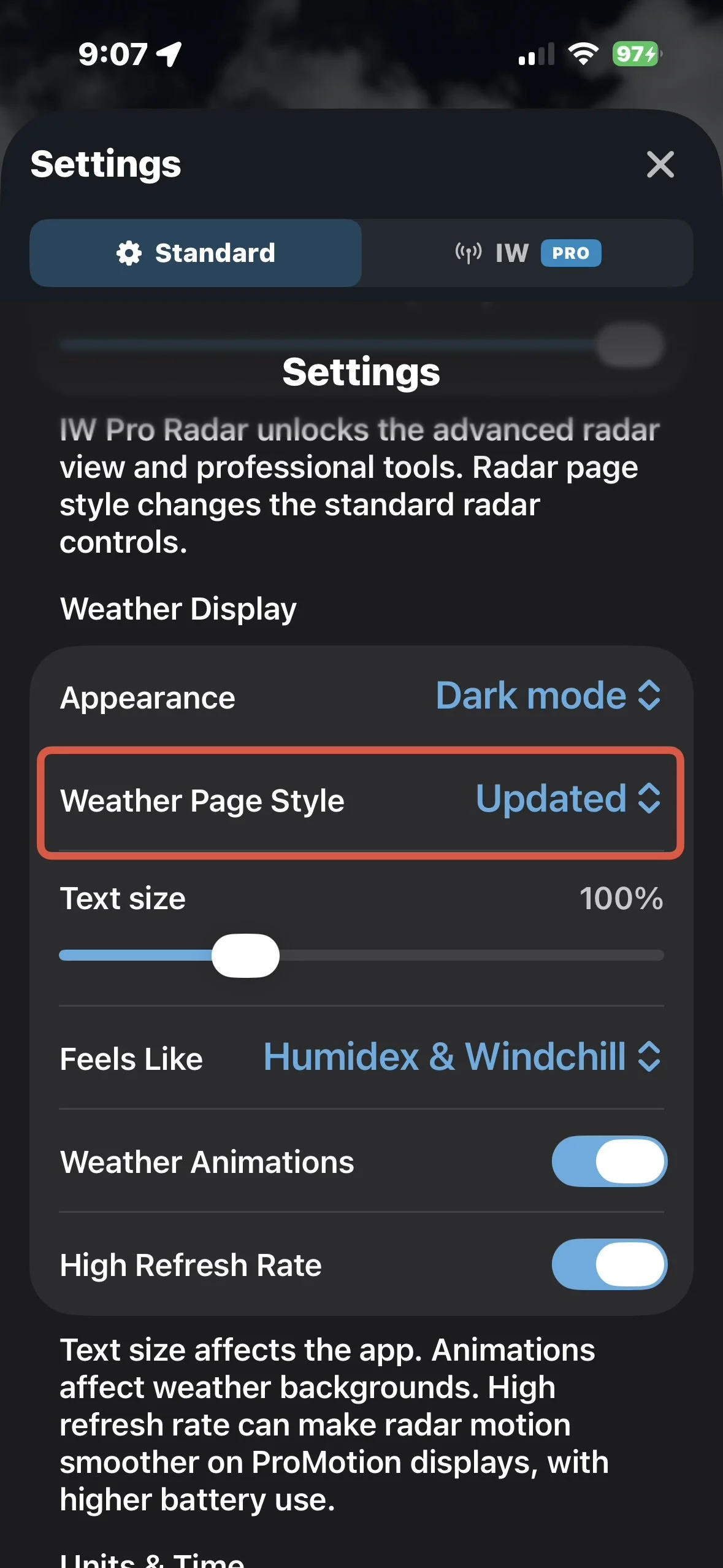
Settings showing Weather Page Style
Current Weather Conditions
One of the biggest differences between the two styles is how current weather information is displayed.
Updated Weather Page
The Updated view displays the current temperature, conditions, feels-like temperature, and daily high and low near the top of the Weather page.
Select More Details to display additional current conditions, including:
Wind
Wind gusts
Humidity
Pressure
Visibility
UV Index
Dewpoint
Cloud cover
24-hour high and low temperatures
Select Less Details to collapse this information again.
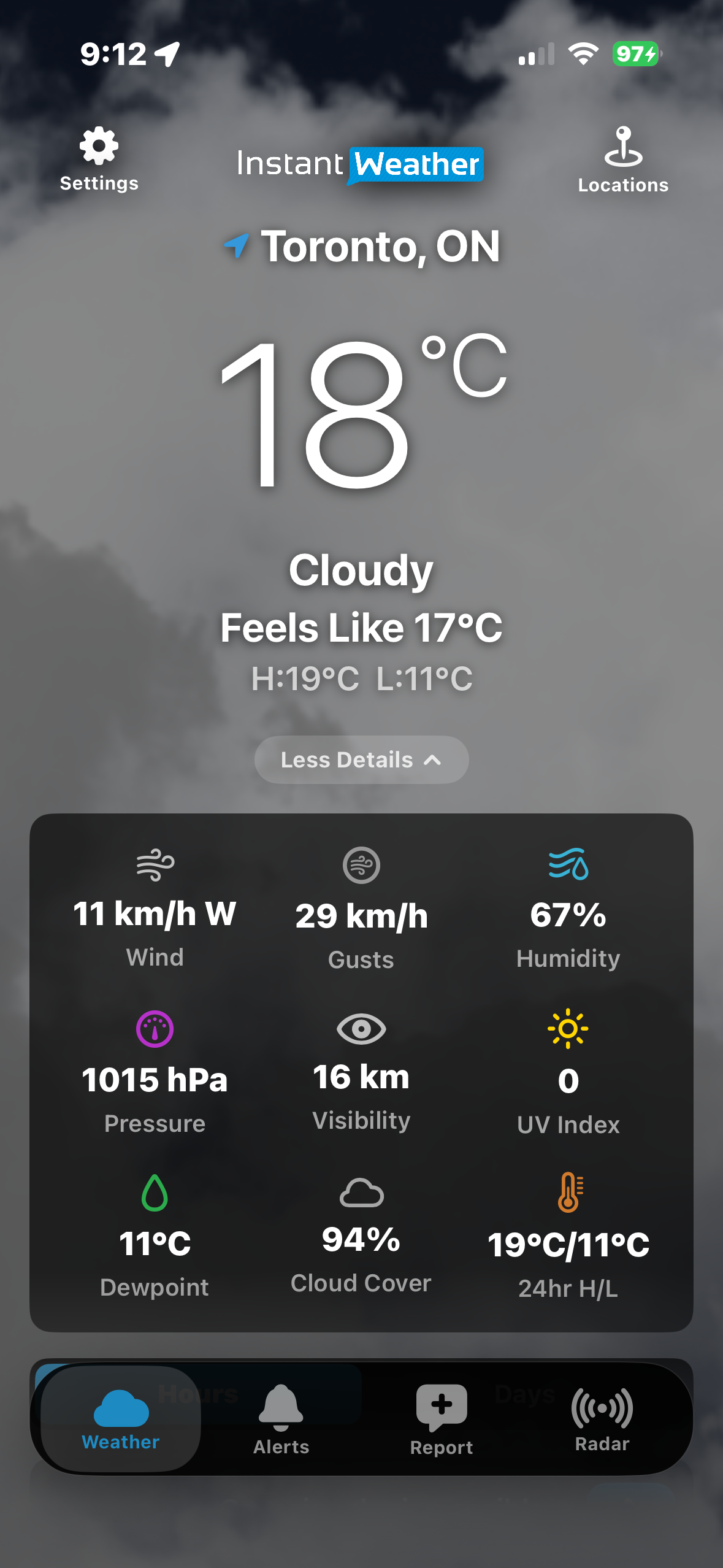
Updated view with More Details expanded
Original Weather Page
The Original view displays the current temperature, conditions and feels-like temperature over the weather background.
Additional current conditions are available by tapping the current conditions area. Tap the current conditions area to switch between the two sets of information.
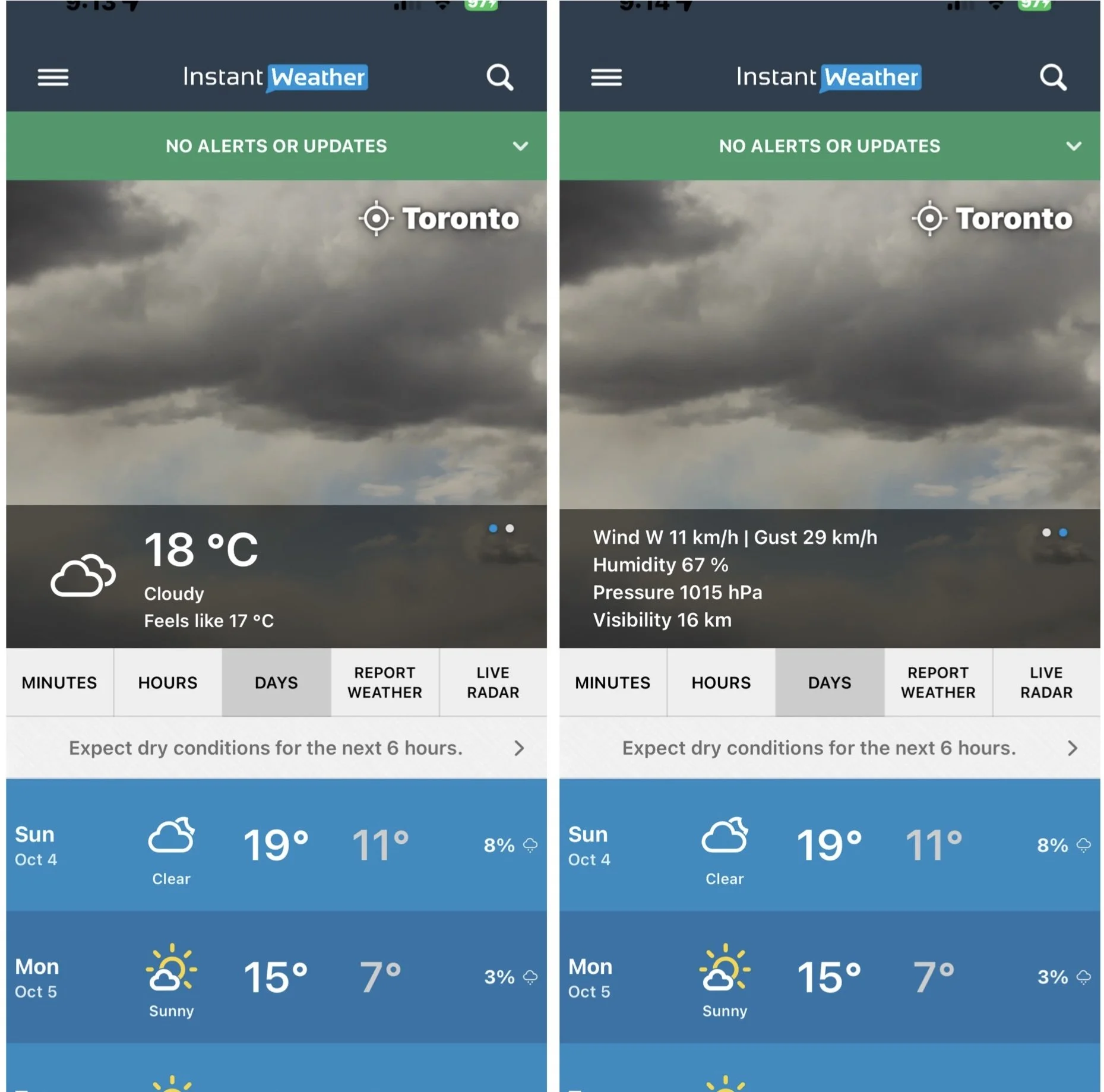
Original current conditions / additional conditions
This lets you view information such as wind, wind gusts, humidity, pressure and visibility while retaining the Original Weather Page layout.
Hourly Forecast
Both Weather Page styles provide hourly forecast information, but the Updated view offers considerably more ways to explore it.
Updated Weather Page
Select Hours to view the hourly forecast.
Each hour displays basic forecast information, and selecting an hour provides additional details including:
Precipitation
Probability of precipitation
Wind
Wind gusts
Temperature
Feels-like temperature
Dewpoint
Humidity
Cloud cover
Pressure
Visibility
The graph above the hourly forecast can also display different weather values. Select a weather value and scroll across the forecast to see how it is expected to change over time.
This can be particularly useful for precipitation. For example, you can follow the forecast through the day to see when rain or snow is expected to become heavier or lighter.
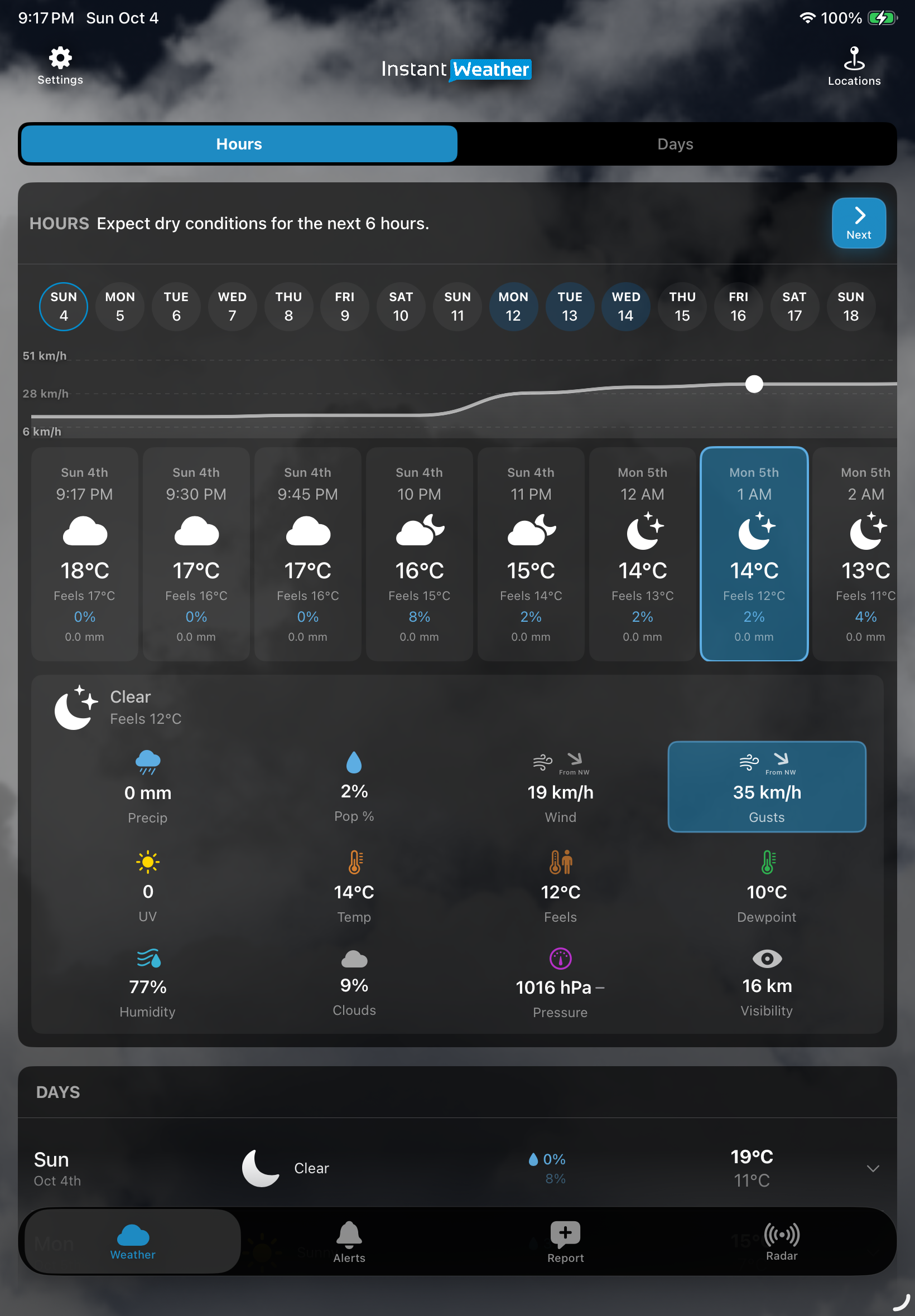
Updated hourly forecast with graph and detailed weather information
Finding the Next Precipitation
At the top of the Updated hourly forecast, the app provides a summary of expected precipitation.
If precipitation is expected later in the forecast, select Next to move ahead to the next period when precipitation is expected.
This can make it easier to find rain or snow that may not occur until several days later.
If no precipitation is expected in the immediate forecast, the app may instead display a message such as “Expect dry conditions for the next 6 hours.”
Original Weather Page
The Original view presents hourly forecast information in vertical columns.
You can scroll through the hours and dates to see information including temperature, feels-like temperature, weather conditions, chance and amount of precipitation, wind and gusts, humidity, and pressure.
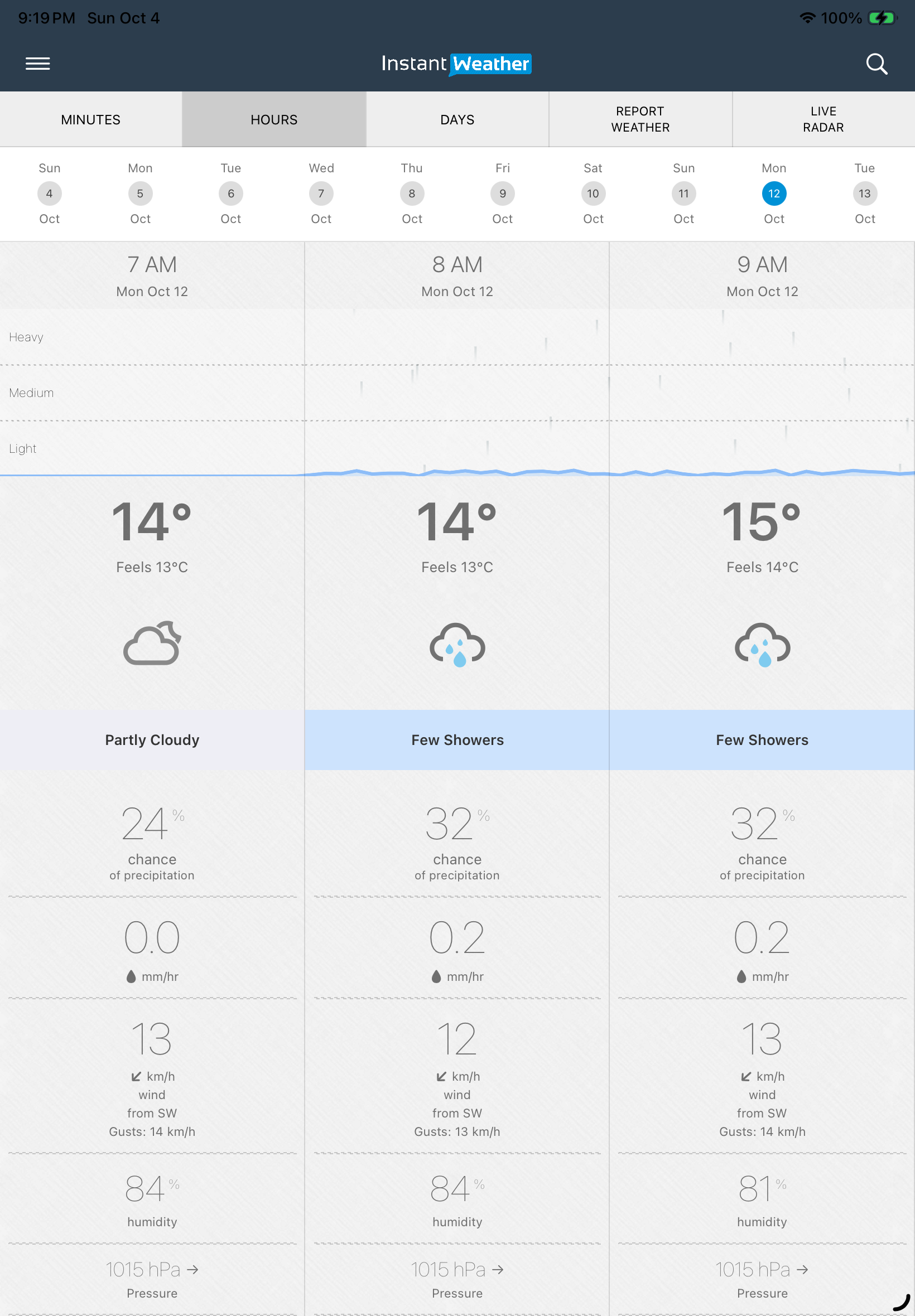
Original hourly forecast
The Original view does not provide the same interactive graph that is available in the Updated view.
Daily Forecast
Both Weather Page styles allow you to select a day to see more detailed forecast information, including separate Day and Night forecasts, sunrise and sunset times, wind, precipitation information, and a link to view the hourly forecast.
The main difference is how the information is displayed. The Original style uses the familiar blue forecast cards, while the Updated style presents the forecast in a more compact list and separates longer-range forecasts into an Extended section.
Updated Weather Page
Select Days to see the daily forecast.
Each day shows the expected weather conditions, high and low temperatures, and precipitation information.
Tap the arrow beside a day to expand it.
The expanded forecast provides separate Day and Night information, including:
Forecast conditions
High or low temperature
Wind
Chance of precipitation
Sunrise and sunset times
You can also select View Hourly Data to view the hourly forecast for that day.
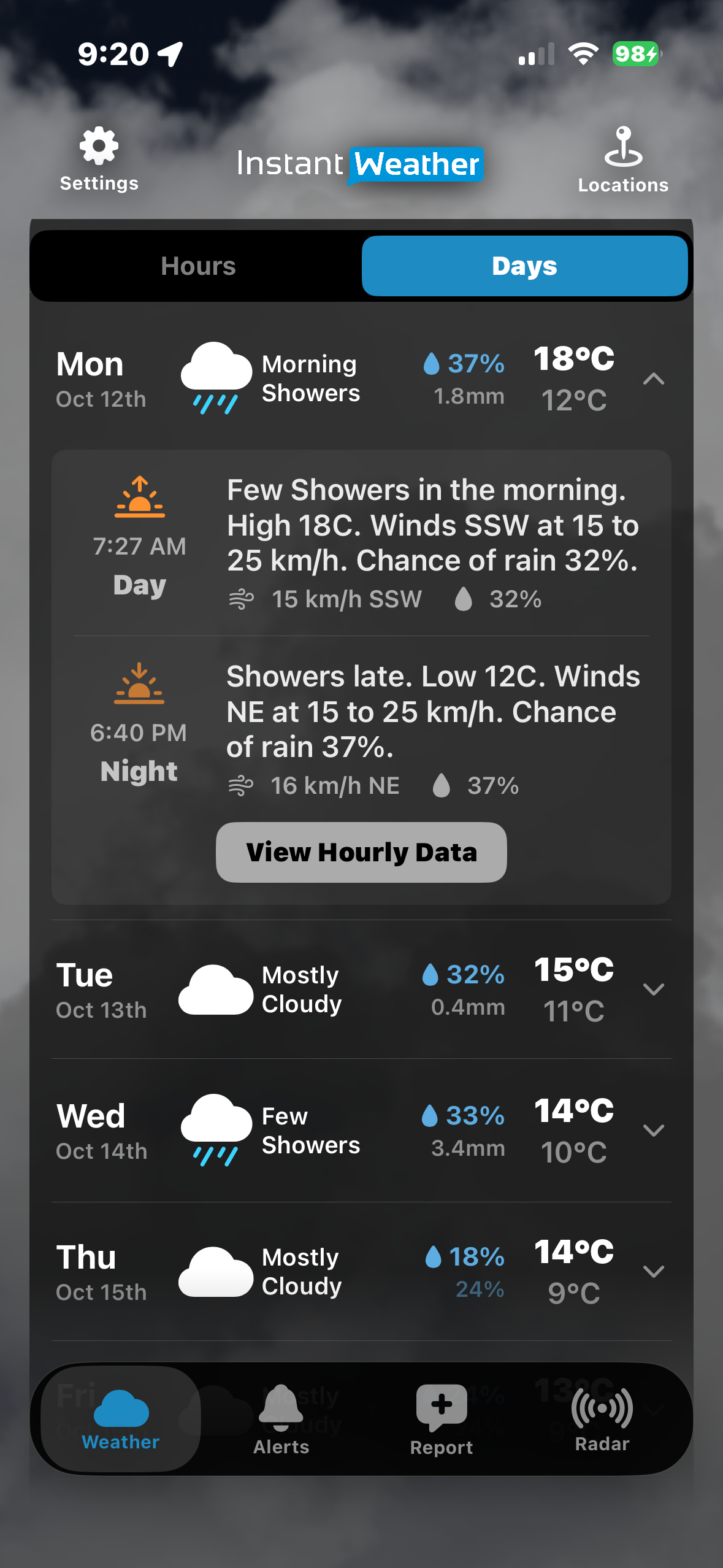
Updated Days view with a day expanded
Forecasts farther into the future are displayed in a separate Extended section.
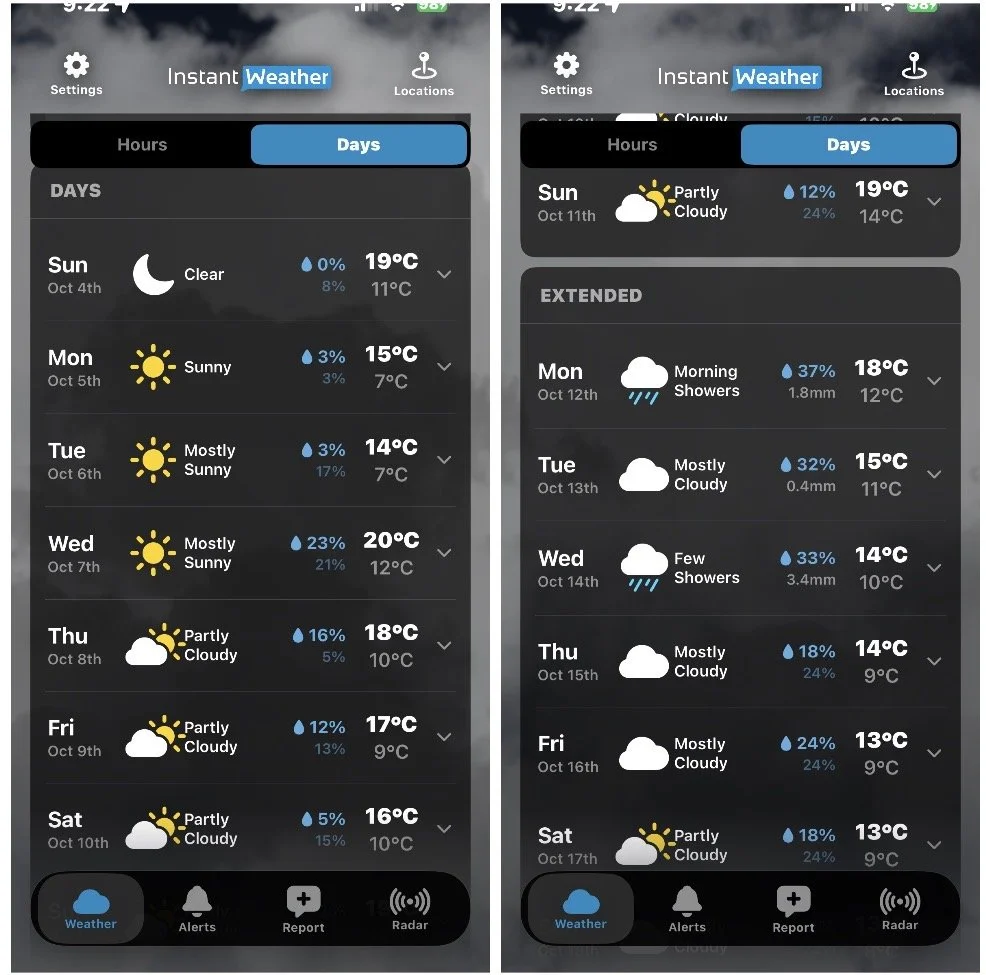
Updated Days and Extended forecasts
Original Weather Page
The Original Weather Page displays the daily forecasts as coloured rows.
Each row includes the date, expected conditions, high and low temperatures, and precipitation information.
When precipitation is forecast, the amount may also be displayed.
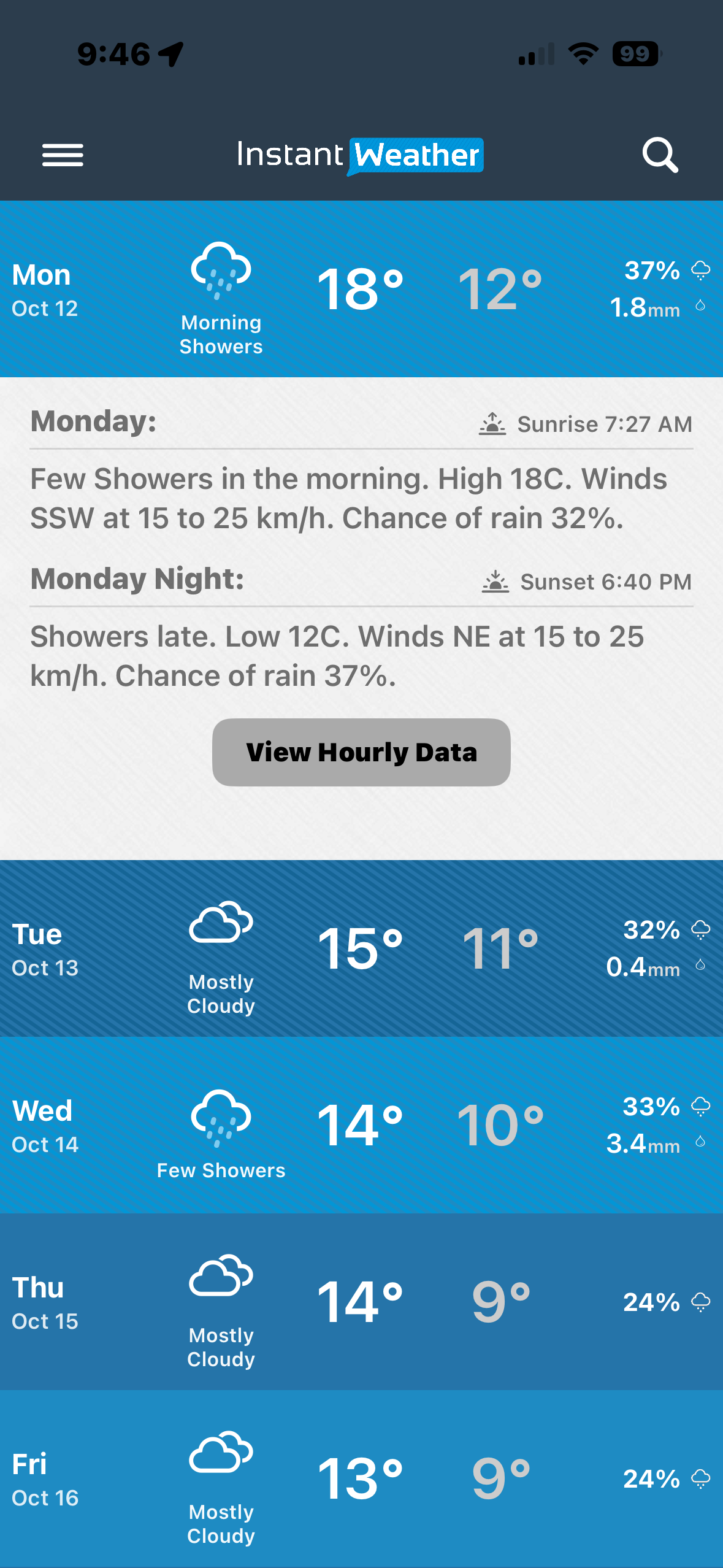
Original daily forecast
Select a day to view the detailed Day and Night forecasts, including sunrise and sunset times, forecast conditions, wind and precipitation information. You can also select View Hourly Data to see the hourly forecast for that day.
Which Weather Page Style Should I Use?
There is no right or wrong choice. Both styles provide access to your weather forecast.
You may prefer the Updated Weather Page if you want:
More current-condition details on one screen
A more interactive hourly forecast
Graphs showing how weather values change over time
Quick navigation to upcoming precipitation
Easier access to Extended forecasts
You may prefer the Original Weather Page if you:
Prefer the familiar Instant Weather layout
Like seeing the daily forecast in larger coloured rows
Prefer the traditional column-style hourly forecast
Want a simpler presentation of the forecast
You can switch between Updated and Original at any time under Settings → Weather Display → Weather Page Style.
Last updated: November 10, 2026