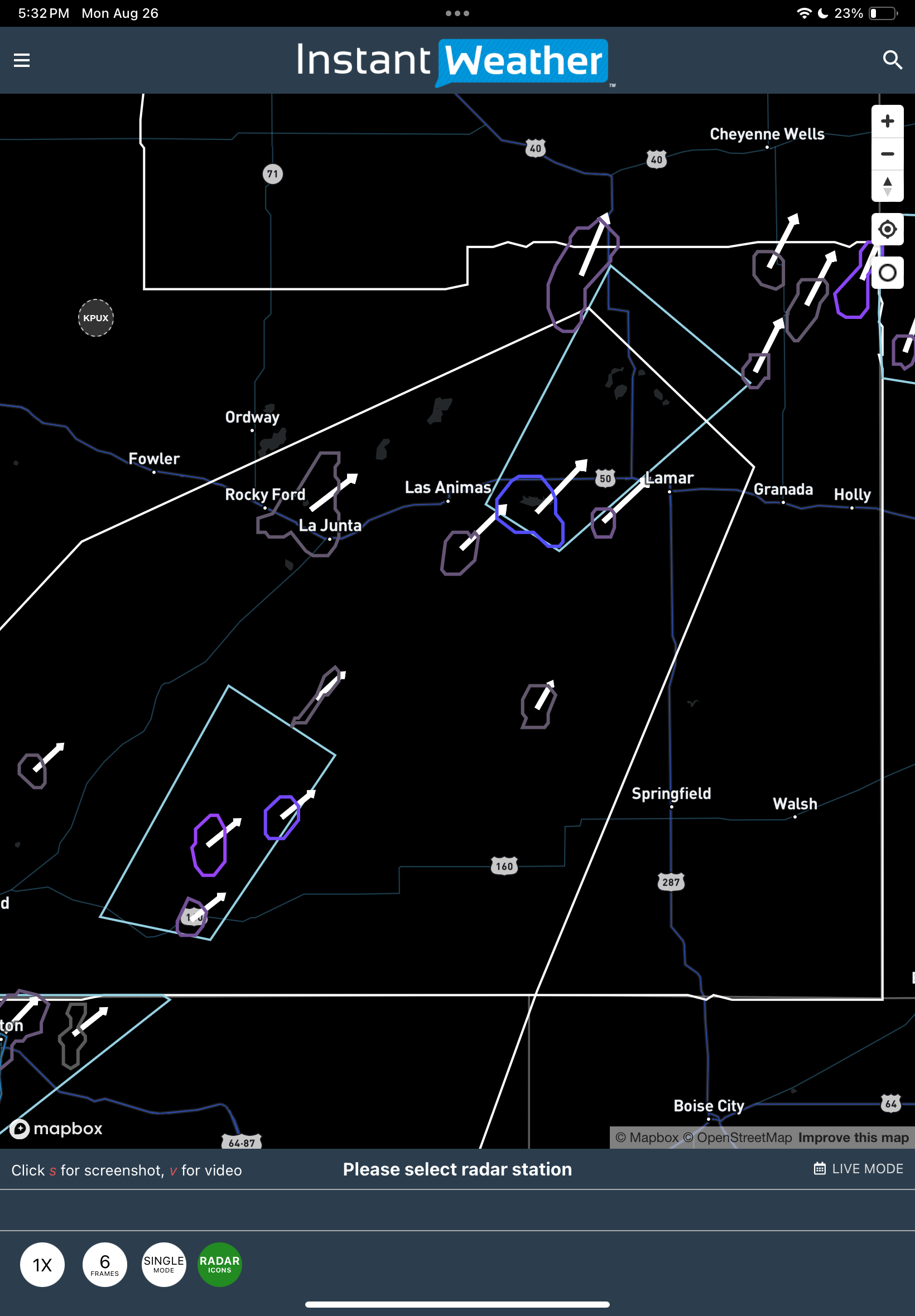
IW StormRisk storm track arrows and colour key

The StormRisk storm track arrows have been added so that you can see the predicted direction of travel of the storm(s).

With the radar turned on:

Here are some examples of the colours of the outlines with the Total Severe Risk percentages. Note that the thickness of the outline also increases when the risk increases as well. You can see that in some of the examples where there is another outline present in the screenshots (24-48).

Note that the black colour for greater than 85% is a bug. You will not be able to see against the black map but it will show up well when radar is on.

IW StormRisk is live

IW StormRisk is live for all IW Pro users and combined alert polygons are live in Canada as well!

To turn on IW StormRisk just click on the menu (three bars at the top left) and click to turn it on:

IW StormRisk only works as far north as 51N (basically just south of Calgary) but we have plans to extend it further north to 55N, which will include locations like Saskatoon and Edmonton.

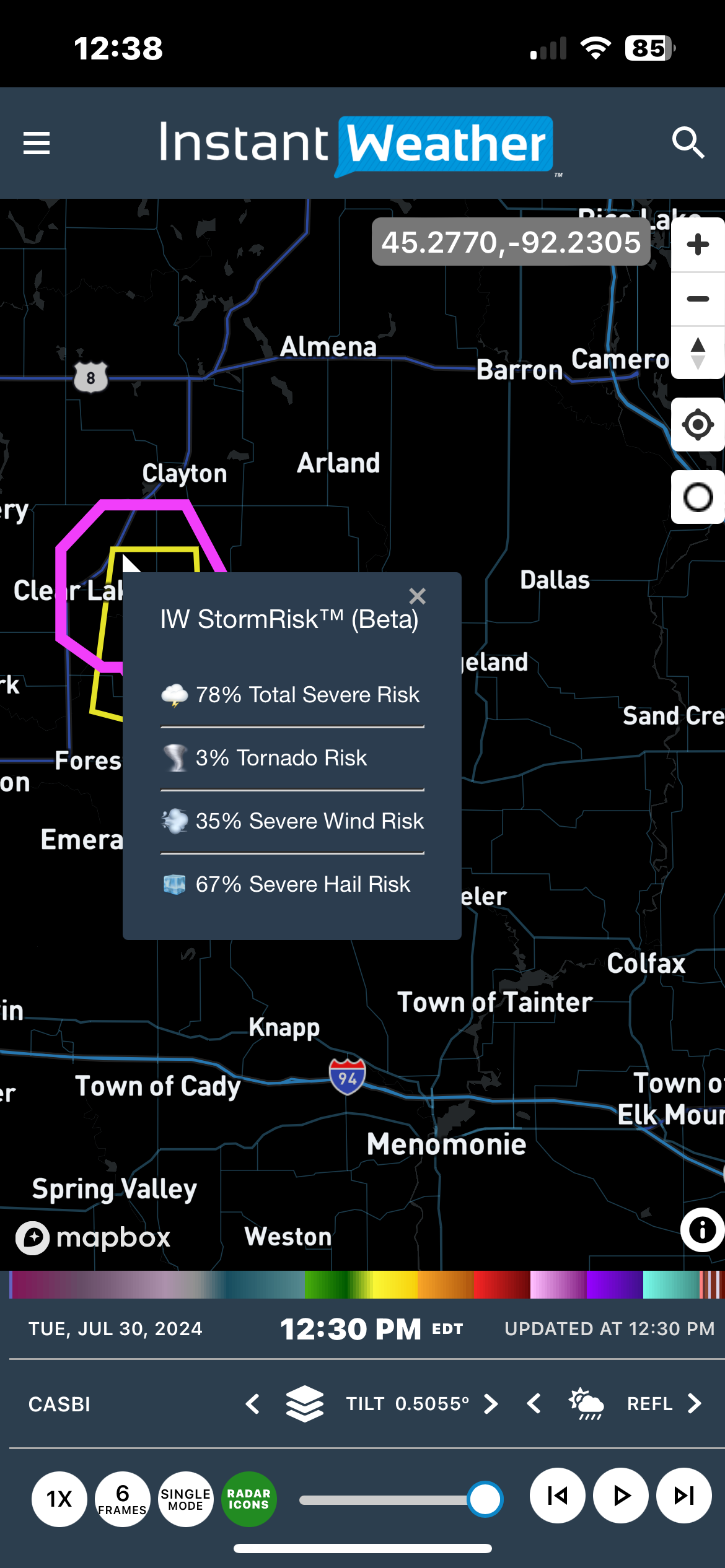
The thickness of the outline is related to the risk level as well as the colour of the outline is related to the type of risks. Here are some examples:

Look for irregular shapes and click on them to see the IW StormRisk:

Mosaic Radar Layer

You can now utilize the Mosaic Radar Layer to gain a comprehensive view of weather systems. This feature allows you to zoom in on specific storms of interest for a detailed analysis using IW Pro.

Turn it on in Rendering Parameters:

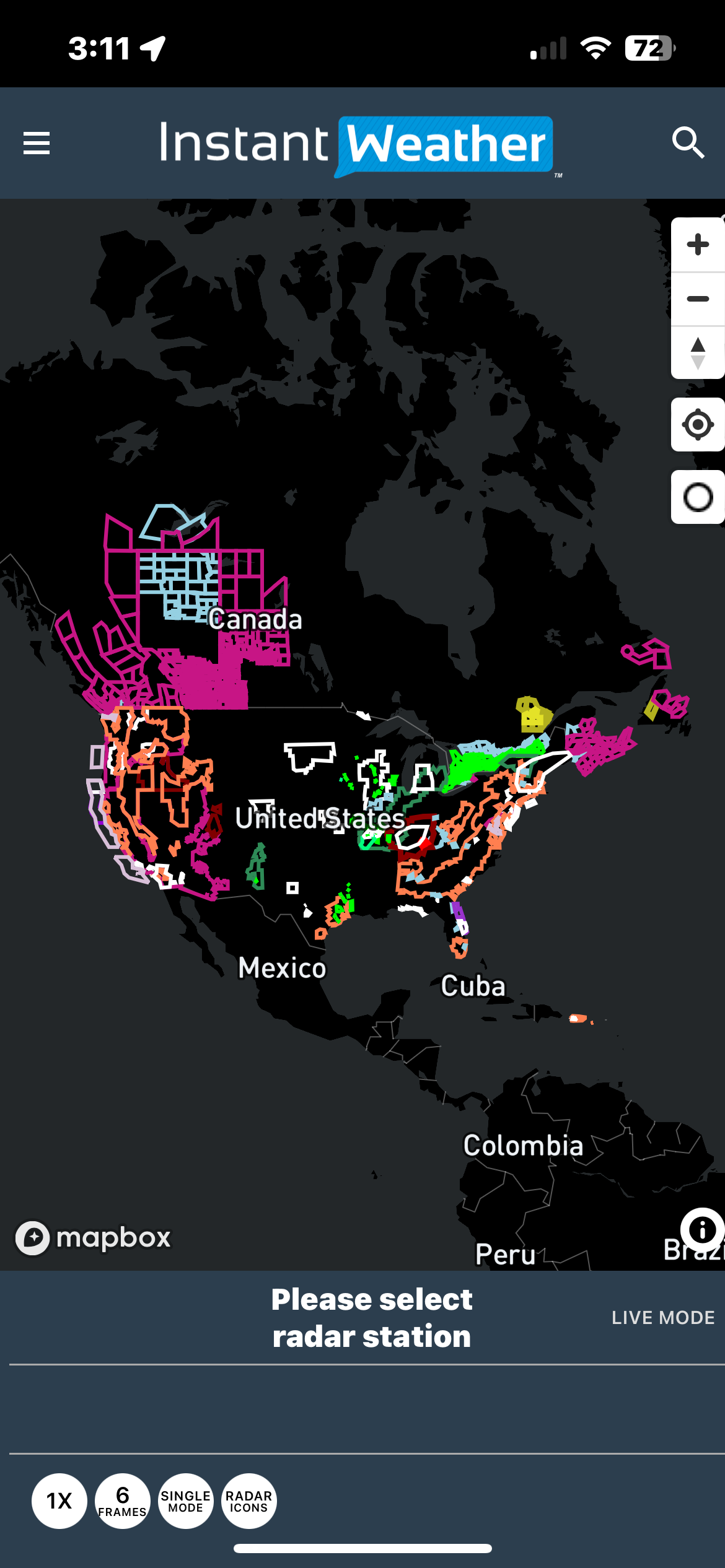
The Mosiac Radar Layer will be visible if no radar stations are selected. Below alerts and radar icons are turned off:

Below alerts are turned on:

Zoomed into a tornado warned storm:

Selected a radar station and Mosaic Radar Layer is turned off:

Note: The Mosaic Radar Layer is not automatically updated.

Measurement tool in single mode

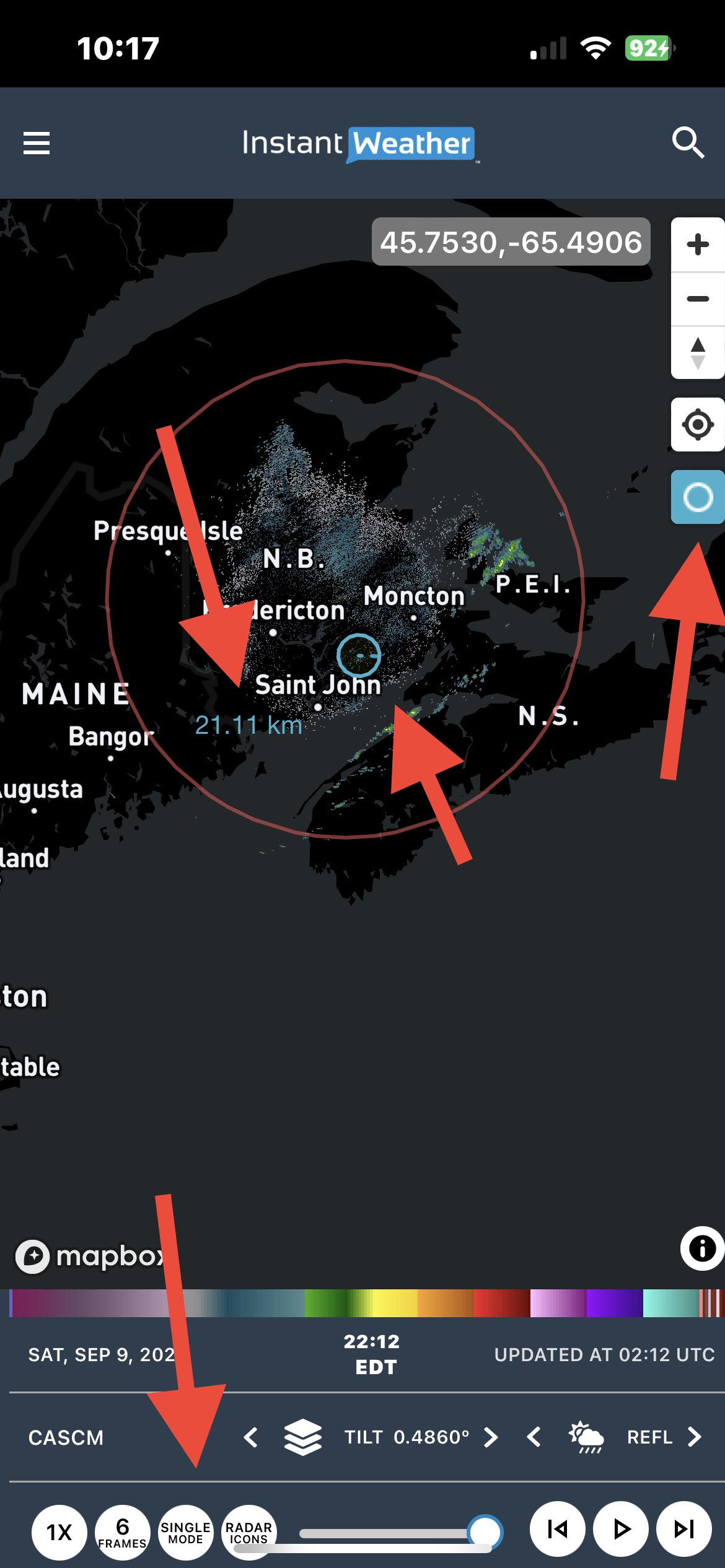
There is now a measurement tool that you can uses when you are in single mode.

  1. Choose Single Mode with any of the products.

  2. Click on the small open circle on the right side of the screen.

  3. With your mouse (PC) or finger (mobile) choose the center point from which to measure and hold until you reach the point you wish to measure the distance to.

  4. The radius of the circle (distance) will be displayed on the screen.

  5. You can also use this circle to “mark” a location and then zoom out.

  6. Click on the small circle again to remove the measurement circle.

In the above example Sussex was chosen as the center mark and I picked a random distance so that when I zoomed out I could see the location of Sussex.

Recent Improvements as of Sept 6

  • updating faster

  • no more flickering with lightning or alerts

  • no more lightning conflicts with city names

  • faster animation

  • measurement tool in single mode

  • changing products is faster

If you are having issues seeing the controls at the bottom of the screen on mobile devices please try adding IW Pro to your Home Screen.

We are also working on fixing the issues with Noise Reduction on Canadian Radars.

Adding IW Pro to your Home Screen

Update: Some Android users have found that this isn’t working anymore. We think that there was a change made to Chrome. It may work better if you have only one tab in your browser window when you add it to your Home Screen.

Both Android and iOS users should try Opera Mini or Opera if they are experiencing any issues with not being able to see all of the controls.

By adding IW Pro to your home screen you can easily click on the icon that is created instead of going to your browser to open up IW pro. This also has the advantage of giving IW Pro more screen space. You may need to pinch the screen to make IW Pro fit. Since there is no refresh button please click on the chosen radar twice when you need to reload the page.

How to add IW Pro to your home screen:

  • Safari or Chrome on iOS

    • open up IW Pro

    • click on the Share button

    • scroll to “Add to Home Screen” and click on it

    • change the name to IW pro (or whatever you would like)

    • Example with Safari - Youtube video

  • Chrome on Android

    • open up IW Pro

    • click on the three dots

    • scroll to “Add to Home Screen” and click on it

    • change the name to IW pro (or whatever you would like)

    • Example YouTube video showing steps